User Debug Markers
User markers can help application developers to correlate the data seen in RGP with their application behavior. User Markers are currently not supported for OpenCL or HIP.
DirectX12 User Markers
For DirectX12, there are three recommended ways to instrument your application with user markers that can be viewed within RGP:
- using native Microsoft® PIX3 event instrumentation (recommended),
- using PIX3 event instrumentation with modified AMD headers, or
- using the debug marker support in AMD GPU Services (AGS) Library.
Using native PIX3 event instrumentation for DirectX12 user debug markers
To view PIX3 markers natively in RGP, your application must use a DirectX12 Agility SDK
with D3D12SDKVersion of 721 or newer. The PIX3 event instrumentation functions supported
by RGP are:
void PIXBeginEvent(ID3D12GraphicsCommandList* commandList, ...)void PIXEndEvent(ID3D12GraphicsCommandList* commandList)void PIXSetMarker(ID3D12GraphicsCommandList* commandList, ...)Your application will need to call ID3D12DeviceTools2::SetUserDefinedAnnotationMode,
passing in D3D12_USER_DEFINED_ANNOTATION_MODE_DRIVER_RETAIL. Given an ID3D12Device pointer called device,
sample code to do this might look like:
D3D12_FEATURE_DATA_USER_DEFINED_ANNOTATION annotationSupport = {};HRESULT hr = device->CheckFeatureSupport(D3D12_FEATURE_USER_DEFINED_ANNOTATION, &annotationSupport, sizeof(annotationSupport));if (FAILED(hr) || !annotationSupport.Supported){  return;}
ID3D12DeviceTools2* deviceTools2 = nullptr;hr = device->QueryInterface(__uuidof(ID3D12DeviceTools2), (void**)&deviceTools2);if (SUCCEEDED(hr) && deviceTools2){  deviceTools2->SetUserDefinedAnnotationMode(D3D12_USER_DEFINED_ANNOTATION_MODE_DRIVER_RETAIL);  deviceTools2->Release();}
No additional header modifications or AMD-specific changes are needed. The markers will appear
in RGP just as they do in the Microsoft PIX tool. If an RGB color is supplied via the
PIX_COLOR(r, g, b) macro, RGP will use that color when displaying the markers.
For more information on PIX event instrumentation, refer to the WinPixEventRuntime repository at https://github.com/microsoft/PixEvents.
Using PIX3 event instrumentation with modified AMD headers for DirectX12 user debug markers
If you are not using a compatible DirectX12 Agility SDK, you can still view PIX markers in RGP by recompiling your application with a slightly modified PIX header file. The steps described here require a WinPixEventRuntime version of at least 1.0.200127001. The same PIX functions described above are used to instrument your application.
The steps to update the PIX header file are:
-
Copy the entire
samples\AmdDxExtfolder provided in the RGP package to the location where the PIX header files (pix3.h,pix3_win.h) reside (typically atWinPixEventRuntime.[x.x]\Include\WinPixEventRuntime). -
Add
#include "AmdDxExt\AmdPix3.h"to the top ofPIXEvents.h:
When using WinPixEventRuntime version 1.0.210209001 or newer:
#if defined(USE_PIX) || !defined(PIX_XBOX)  #define PIX_CONTEXT_EMIT_CPU_EVENTS
  #ifndef PIX_XBOX    #include "AmdDxExt\AmdPix3.h"    #define PIX_AMD_EXT  #endif#endif
When using WinPixEventRuntime version 1.0.200127001:
#include "PIXEventsCommon.h"
#if defined(XBOX) || defined(_XBOX_ONE) || defined(_DURANGO)# define PIX_XBOX#else#include "AmdDxExt\AmdPix3.h"#endif- Update the
PIXEvents.hfile to add anRgpprefix to the existing calls to PIXBeginEventOnContextCpu, PIXEndEventOnContextCpu and PIXSetMarkerOnContextCpu:
When using WinPixEventRuntime version 1.0.231030001 or newer:
#ifdef PIX_CONTEXT_EMIT_CPU_EVENTS#ifdef PIX_AMD_EXT RgpPIXBeginEventOnContextCpu(destination, eventSize, context, color, formatString, args...);#else PIXBeginEventOnContextCpu(destination, eventSize, context, color, formatString, args...);#endif#endif#ifdef PIX_CONTEXT_EMIT_CPU_EVENTS #ifdef PIX_AMD_EXT RgpPIXSetMarkerOnContextCpu(destination, eventSize, context, color, formatString, args…); #else PIXSetMarkerOnContextCpu(destination, eventSize, context, color, formatString, args…); #endif #endif
#ifdef PIX_CONTEXT_EMIT_CPU_EVENTS#ifdef PIX_AMD_EXT RgpPIXEndEventOnContextCpu(destination, context);#else destination = PIXEndEventOnContextCpu(context);#endif#endifWhen using WinPixEventRuntime version 1.0.210209001 up to 1.0.230302001:
#ifdef PIX_CONTEXT_EMIT_CPU_EVENTS#ifdef PIX_AMD_EXT RgpPIXBeginEventOnContextCpuLegacy(context, color, formatString, args...);#else PIXBeginEventOnContextCpu(context, color, formatString, args...);#endif#endif#ifdef PIX_CONTEXT_EMIT_CPU_EVENTS #ifdef PIX_AMD_EXT RgpPIXSetMarkerOnContextCpuLegacy(context, color, formatString, args…); #else PIXSetMarkerOnContextCpu(context, color, formatString, args…); #endif #endif
#ifdef PIX_CONTEXT_EMIT_CPU_EVENTS#ifdef PIX_AMD_EXT RgpPIXEndEventOnContextCpuLegacy(context);#else PIXEndEventOnContextCpu(context);#endif#endifWhen using WinPixEventRuntime version 1.0.200127001:
#if PIX_XBOX PIXBeginEvent(color, formatString, args...);#else#ifdef PIX_AMD_EXT RgpPIXBeginEventOnContextCpuLegacy(context, color, formatString, args...);#else PIXBeginEventOnContextCpu(context, color, formatString, args...);#endif#endif#if PIX_XBOX PIXEndEvent(); #else #ifdef PIX_AMD_EXT RgpPIXEndEventOnContextCpuLegacy(context); #else PIXEndEventOnContextCpu(context); #endif #endif
#if PIX_XBOX PIXSetMarker(color, formatString, args...);#else#ifdef PIX_AMD_EXT RgpPIXSetMarkerOnContextCpuLegacy(context, color, formatString, args...);#else PIXSetMarkerOnContextCpu(context, color, formatString, args...);#endif#endif- Recompile the application. Note that the RGP user markers are only enabled when the corresponding
PIX event instrumentation is also enabled with one of the preprocessor symbols:
USE_PIX,DBG,_DEBUG,PROFILE, orPROFILE_BUILD.
The PIX3 event instrumentation within the application continues to be usable for Microsoft PIX tool without additional side effects or overhead.
To find a more complete description of how to use the PIX event instrumentation, refer to https://devblogs.microsoft.com/pix/winpixeventruntime/.
See many examples of using PIX event instrumentation at https://github.com/Microsoft/DirectX-Graphics-Samples.
Using AGS for DirectX12 user debug markers
The AMD GPU Services (AGS) library provides software developers with the ability to query AMD GPU software and hardware state information that is not normally available through standard operating systems or graphic APIs. AGS includes support for querying graphics driver version info, GPU performance, CrossFire™ (AMD’s multi-GPU rendering technology) configuration info, and Eyefinity (AMD’s multi-display rendering technology) configuration info. AGS also exposes the explicit Crossfire API extension, GCN shader extensions, and additional extensions supported in the AMD drivers for DirectX® 11 and DirectX 12. One of the features in AGS is the support for DirectX 12 user debug markers.
User markers can be inserted into your application using AGS function calls. The inserted user markers can then be viewed within RGP. The main steps to obtaining user markers are described below.
Articles and blogs about AGS can be found here: https://gpuopen.com/amd-gpu-services-ags-library/
Additional API documentation for AGS can be found at: https://gpuopen-librariesandsdks.github.io/ags/
Download AGS
Download the AGS library from: https://github.com/GPUOpen-LibrariesAndSDKs/AGS_SDK/
The library consists of pre-built Windows libraries, DLLs, sample and documentation. You will need to use files in the following two dirs.
-
Headers: AGS_SDK-master\ags_lib\inc
-
Libraries: AGS_SDK-master\ags_lib\lib
Integrate AGS header, libs, and DLL into your project
AGS requires one header (amd_ags.h) to be included in your source code.
Add the location of the AGS header to the Visual Studio project settings
and include the header in the relevant code files.
#include “amd_ags.h”
Link your exe against correct AGS library for your project (32 or 64bit, MD or MT static library, debug or release, or DLL).
| Library Name | AGS Runtime DLL required | Library Type | |
|---|---|---|---|
| 64 Bit | amd_ags_x64.lib | amd_ags_x64.dll | DLL |
| amd_ags_x64_2015_MD.lib | NA | VS2015 Lib (multithreaded dll runtime library) | |
| amd_ags_x64_2015_MT.lib | NA | VS2015 Lib (multithreaded static runtime library) | |
| amd_ags_x64_2015_MDd.lib | NA | VS2015 Lib (debug multithreaded dll runtime library) | |
| amd_ags_x64_2015_MTd.lib | NA | VS2015 Lib (debug multithreaded static runtime library) | |
| amd_ags_x64_2017_MD.lib | NA | VS2017 Lib (multithreaded dll runtime library) | |
| amd_ags_x64_2017_MT.lib | NA | VS2017 Lib (multithreaded static runtime library) | |
| amd_ags_x64_2017_MDd.lib | NA | VS2017 Lib (debug multithreaded dll runtime library) | |
| amd_ags_x64_2017_MTd.lib | NA | VS2017 Lib (debug multithreaded static runtime library) | |
| amd_ags_x64_2019_MD.lib | NA | VS2019 Lib (multithreaded dll runtime library) | |
| amd_ags_x64_2019_MT.lib | NA | VS2019 Lib (multithreaded static runtime library) | |
| amd_ags_x64_2019_MDd.lib | NA | VS2019 Lib (debug multithreaded dll runtime library) | |
| amd_ags_x64_2019_MTd.lib | NA | VS2019 Lib (debug multithreaded static runtime library) | |
| 32 Bit | amd_ags_x86.lib | amd_ags_x86.dll | DLL |
| amd_ags_x86_2015_MD.lib | NA | VS2015 Lib (multithreaded dll runtime library) | |
| amd_ags_x86_2015_MT.lib | NA | VS2015 Lib (multithreaded static runtime library) | |
| amd_ags_x86_2015_MDd.lib | NA | VS2015 Lib (debug multithreaded dll runtime library) | |
| amd_ags_x86_2015_MTd.lib | NA | VS2015 Lib (debug multithreaded static runtime library) | |
| amd_ags_x86_2017_MD.lib | NA | VS2017 Lib (multithreaded dll runtime library) | |
| amd_ags_x86_2017_MT.lib | NA | VS2017 Lib (multithreaded static runtime library) | |
| amd_ags_x86_2017_MDd.lib | NA | VS2017 Lib (debug multithreaded dll runtime library) | |
| amd_ags_x86_2017_MTd.lib | NA | VS2017 Lib (debug multithreaded static runtime library) | |
| amd_ags_x86_2019_MD.lib | NA | VS2019 Lib (multithreaded dll runtime library) | |
| amd_ags_x86_2019_MT.lib | NA | VS2019 Lib (multithreaded static runtime library) | |
| amd_ags_x86_2019_MDd.lib | NA | VS2019 Lib (debug multithreaded dll runtime library) | |
| amd_ags_x86_2019_MTd.lib | NA | VS2019 Lib (debug multithreaded static runtime library) |
Initialize AGS
When you have your project building the first thing to do is to initialize the AGS context.
// Specify AGS configuration (optional memory allocation callbacks)AGSConfiguration config = {};
// Initialize AGSAGSReturnCode agsInitReturn = agsInitialize(AGS_MAKE_VERSION(AMD_AGS_VERSION_MAJOR, AMD_AGS_VERSION_MINOR, AMD_AGS_VERSION_PATCH), &config, &m_AGSContext, &m_AmdgpuInfo);
// Report error on AGS initialization failureif (agsInitReturn != AGS_SUCCESS){        printf("\\nError: AGS Library was NOT initialized - Return Code %d\\n", agsInitReturn);}
Initialize the DirectX12 Extension
Once the AGS extension has been successfully created we need to create the DirectX12 extension as follows:
// Create the device using AGSAGSDX12DeviceCreationParams dxCreateParams = {hardwareAdapter.Get(), __uuidof(ID3D12Device), D3D_FEATURE_LEVEL_11_0};AGSDX12ReturnedParams dxReturnedParams;AGSReturnCode dxInitReturn = agsDriverExtensionsDX12_CreateDevice(m_AGSContext, &dxCreateParams, nullptr, &dxReturnedParams);
// Report error on AGS DX12 device creation failureif (dxInitReturn != AGS_SUCCESS){        printf("Error: AGS DX12 extension could not create a device - Return Code %d\n", agsInitReturn);}else{        printf("AGS DX12 device was created.\n");        m_device = dxReturnedParams.pDevice;
        // Check whether user markers are supported by the current driver        if (dxReturnedParams.extensionsSupported.userMarkers == 1)        {                printf("AGS_DX12_EXTENSION_USER_MARKERS are supported.\n");        }        else        {                printf("AGS_DX12_EXTENSION_USER_MARKERS are NOT supported.\n");        }}
Please note that the above code checks if the driver is capable of supporting user markers by looking at the extensions supported by the driver. This step may fail on older drivers.
Insert Markers in Application
The main functions provided by AGS for marking applications are:
agsDriverExtensionsDX12_PushMarker;agsDriverExtensionsDX12_PopMarker;agsDriverExtensionsDX12_SetMarker;The below example shows how a draw call can be enclosed within a “Draw Particles” user marker, followed by inserting a marker.
// Push a markeragsDriverExtensionsDX12_PushMarker(m_AGSContext, pCommandList, "DrawParticles");
// This draw call will be in the "Draw Particles" User MarkerpCommandList->DrawInstanced(ParticleCount, 1, 0, 0);
// Pop a markeragsDriverExtensionsDX12_PopMarker(m_AGSContext, pCommandList);
// Insert a markeragsDriverExtensionsDX12_SetMarker(m_AGSContext, pCommandList, "Finished Drawing Particles");
Vulkan User Markers
Debug Utils Extension
Vulkan has support for user debug markers using the VK_EXT_debug_utils extension.
Documentation on this extension can be seen here:
https://www.lunarg.com/wp-content/uploads/2018/05/Vulkan-Debug-Utils_05_18_v1.pdf
A code sample can be seen at:
https://github.com/SaschaWillems/Vulkan/blob/master/examples/debugutils/debugutils.cpp
Debug Marker Extension
An older, deprecated extension, VK_EXT_debug_marker, also exists. The following
article has details on this older extension:
Both VK_EXT_debug_utils and VK_EXT_debug_marker extensions are supported in RGP.
Inserting user markers via these extensions should generate user events in your RGP profile
which can be viewed in the RGP user interface.
Viewing User Markers
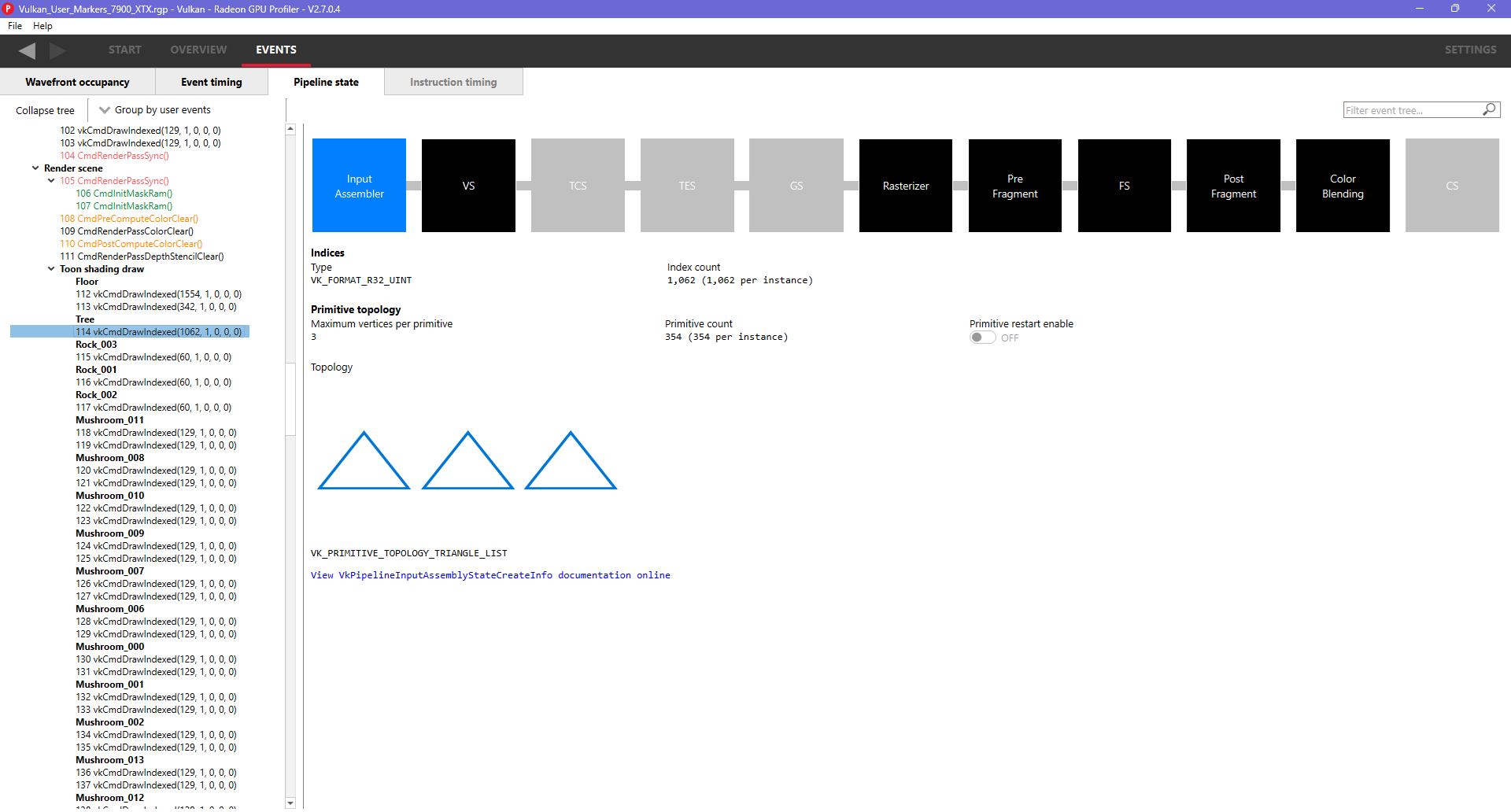
The RGP file captured for a frame of the above application contains many user markers. The user markers can be seen in the “Event timing” and “Pipeline state” views when you choose the “Group by User Marker” option as shown below.
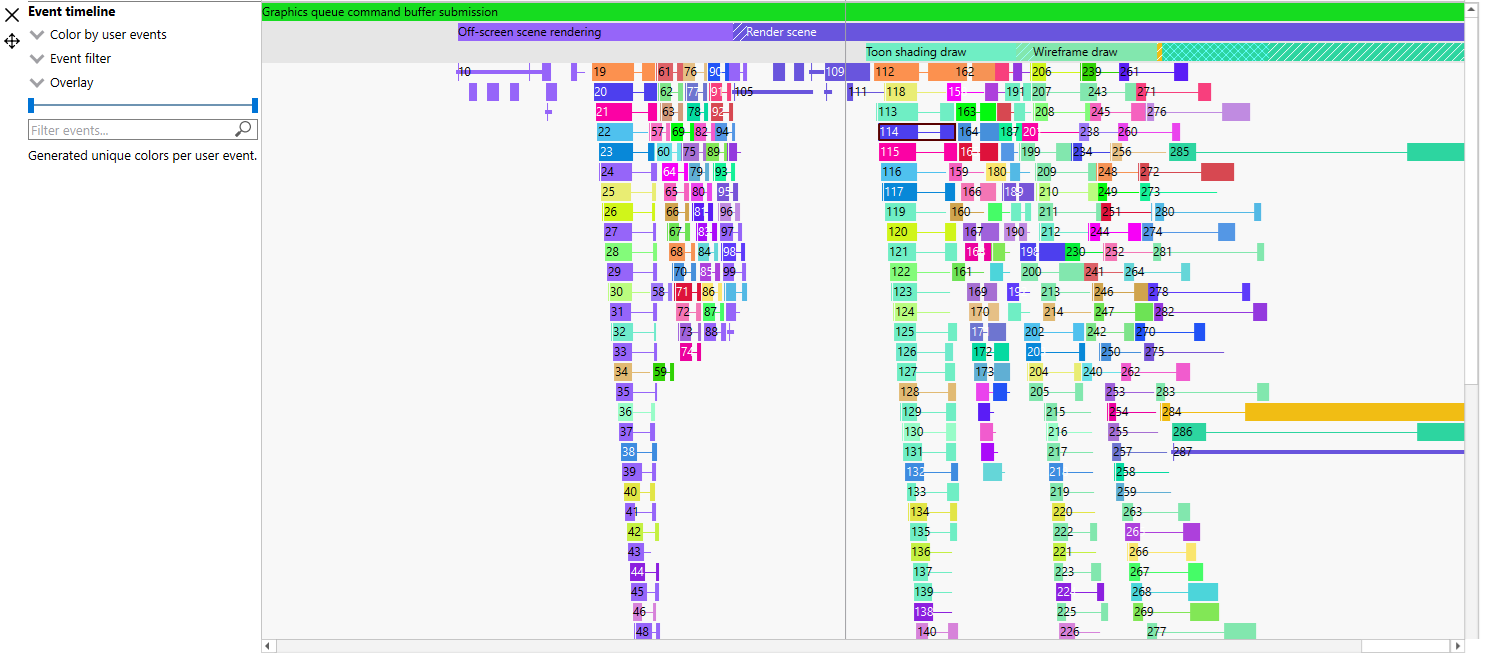
User markers can also be seen in the wavefront occupancy view when you color by user events. Coloring by user events is also possible in the event timing view. As seen below, user events are push and pop durations, and any RGP events that fall within a user event duration will be shown with the same color as that user event. SetMarker applies a unique color to the single RGP event immediately following the marker. Any events not enclosed by user events or preceded by a SetMarker are shown in grey.
Additionally, the user event names are displayed in an Overlay at the top of the event timeline view.
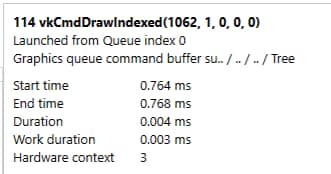
The full user event hierarchy is also visible on the third line of the side pane when clicking on individual events. If the event does not contain a user event hierarchy, nothing will be shown.