Settings
General
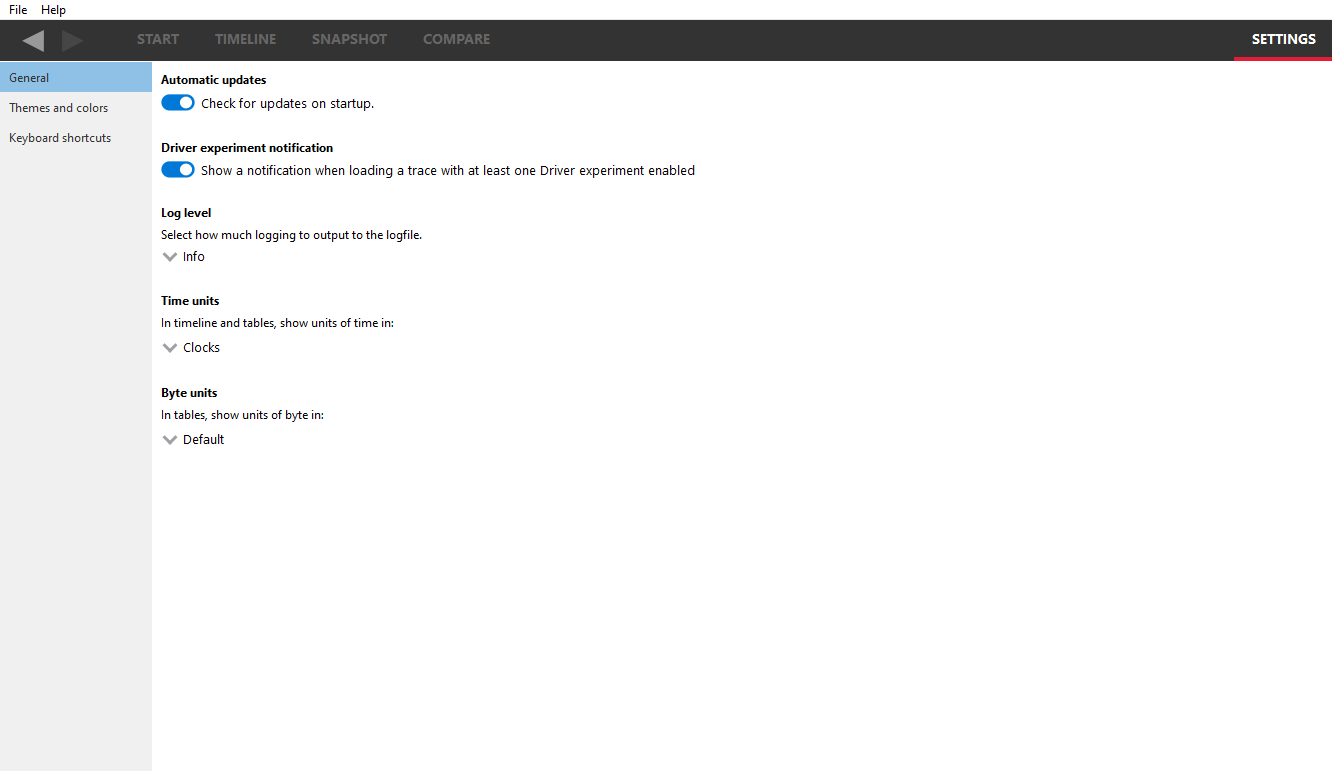
Automatic updates If checked, the Radeon Memory Visualizer will alert you that a new version is available for download.
Driver experiment notifications If checked, the Radeon Memory Visualizer will display a notification banner under the main drop down menu of the user interface indicating when a loaded memory trace file contains modified Driver experiments.
Log level Will allow selection of how verbose the logging should be. Options are Error, Warning, Info and Debug. Selecting Error will show only error messages. Selecting info will show Information messages, errors and warnings. The log file is saved to disk in the same location as the settings file. On Windows, this is in the user AppDataRoamingRadeonMemoryVisualizer folder; on Linux, it can be found in the folder ’~/.RadeonMemoryVisualizer’
Time units This tells the Radeon Memory Visualizer whether to work in clocks, milliseconds, seconds, minutes or hours. Refer to the keyboard binding in the section below to quickly toggle between these time units.
Byte units Allows memory sizes to be displayed in binary or decimal format. Historically, physical memory sizes are in binary (1024 bytes per kilobyte). Displaying in decimal will show 1000 bytes per kilobyte. Selecting default will disable the binary or decimal override.
Themes and colors
The visualizer makes heavy use of coloring to display its information. This pane allows users to thoroughly customize those colors.
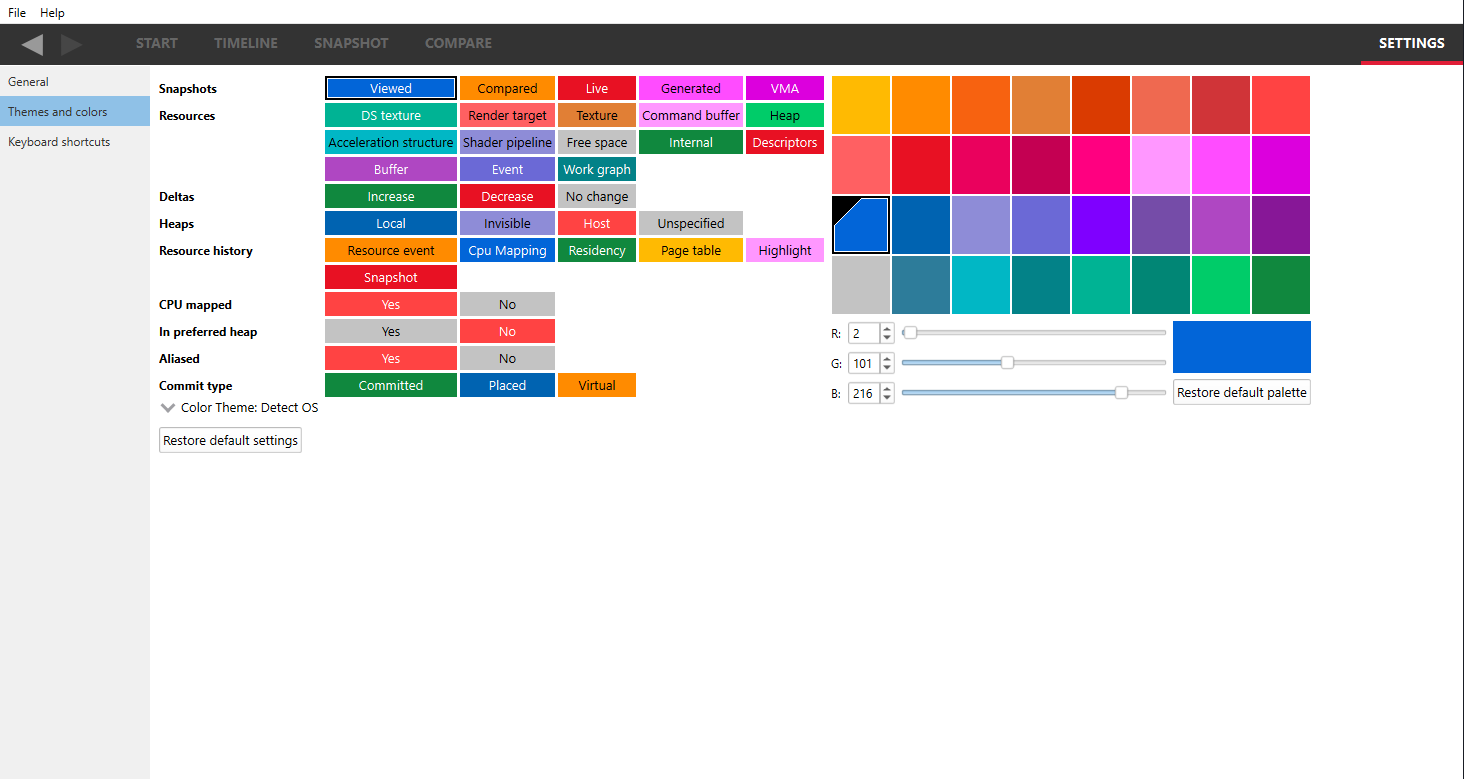
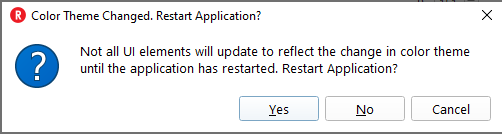
Color theme: The color theme can be changed with the “Color Theme” drop down combo box. This changes the application-wide background and text color. The “Light” option maintains RMV’s default look of white backgrounds with black text. The “Dark” option changes RMV to have a dark background color with lighter color text. The “Detect OS” option uses the system’s color theme to determine whether the color theme should be light or dark. If the system’s color theme cannot be detected, RMV will default to light theme. If the system’s color theme is changed while RMV is open with the “Detect OS” option selected it will not apply until the application has been restarted. On Windows operating systems when changing the color theme a pop-up prompt will recommend restarting the application. This is because not all parts of RMV will update to a change in color theme until the application is restarted. Changing the color theme will not change any other color customization options that have been selected.
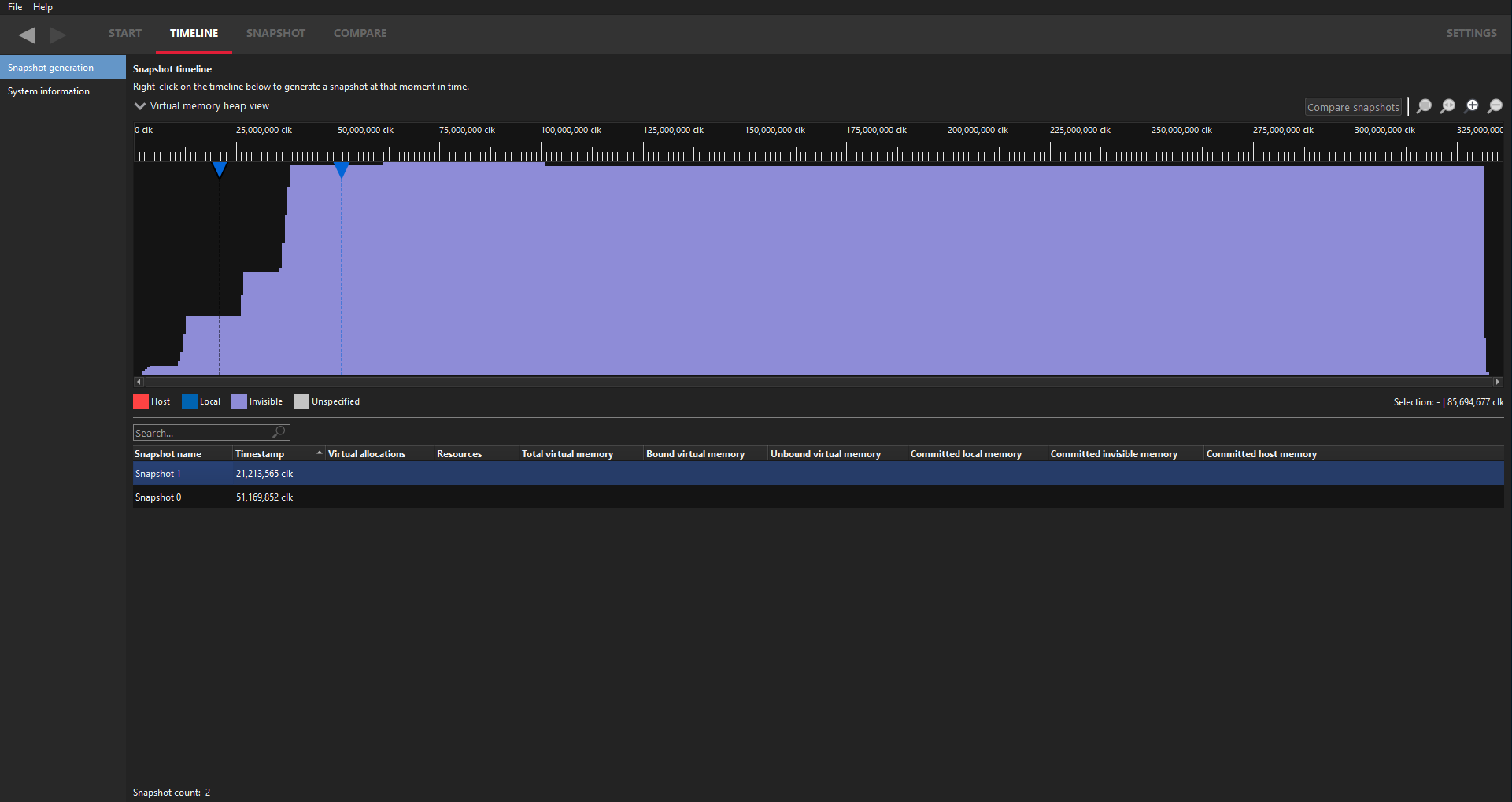
This is an example of how RMV will look when the color theme is changed to dark:
Keyboard shortcuts
Here users will find the Keyboard shortcuts pane:
The Global navigation section refers to keystrokes that aid user navigation, and are always detected regardless of which pane is visible.
The Timeline controls shortcuts are specific to zooming and panning operations that can be performed within the Timeline view (see below).
The Global hotkeys section refers to any hotkeys available anywhere in the product. Currently there are hotkeys to open and close a trace file and to cycle through the different time units from any pane, rather than having to go to the settings. This allows you to view a timeline in clock cycles, milliseconds, seconds or minutes very quickly.
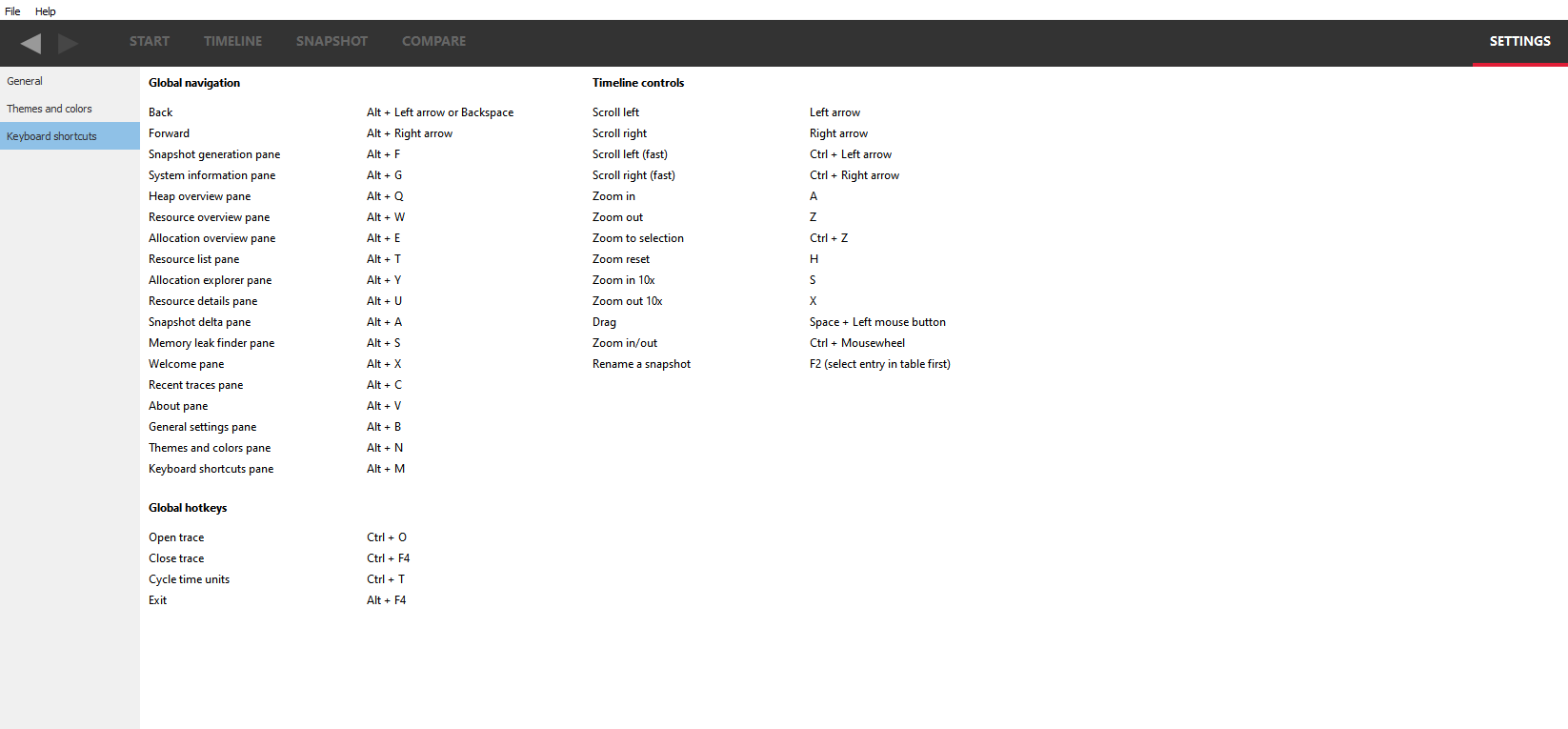
All users are encouraged to adopt these keystrokes while using RMV.
UI Navigation
In an effort to improve workflow, RMV supports keyboard shortcuts and back and forward history to quickly navigate throughout the UI.
Back and forward navigation
RMV tracks navigation history, which allows users to navigate back and forward between all of RMV’s panes. This is achieved using global navigation hotkeys shown above, or the back and forward buttons on all panes in the top left below the file menu.
Currently, back and forward navigation is restricted to pane switches.